
Scheme history
Accessing scheme history
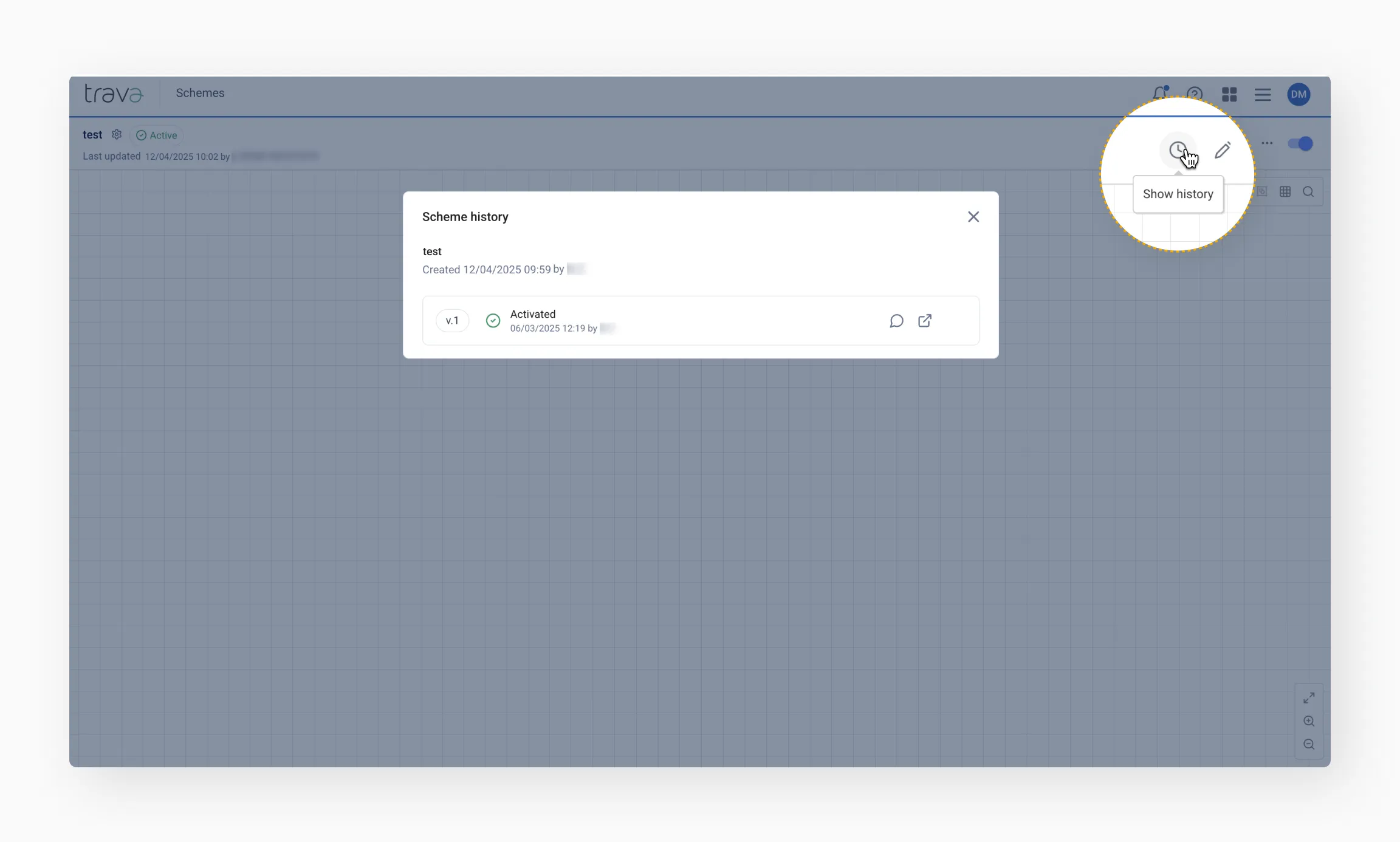
The history log begins when a scheme is first activated. You can view it regardless of its current status. Click the Show history icon in the top-right area of the Control panel to open the history panel.
Versioning and activation
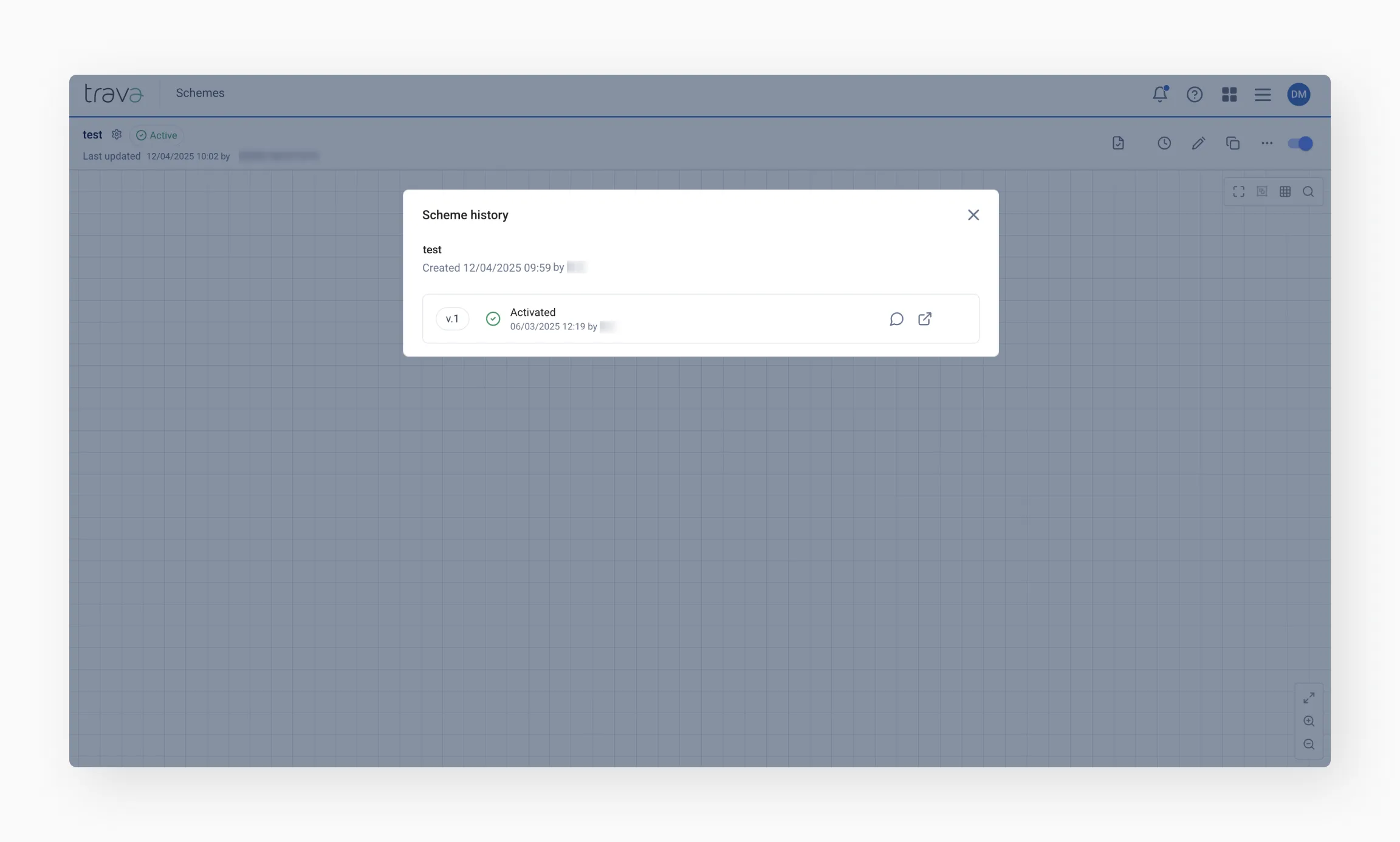
Upon its first activation, the scheme is assigned a version number (e.g., v.1). Each time a draft is activated thereafter, a new record is created, and the version number increments.
Tip
The version will be attributed to the person who activated the draft, even if another user made the changes to it.Track changes
- Each time a scheme is activated and a new version is created, the system records all actions performed.
- Click the arrow at the end of a version line to expand and view detailed information.
- You'll see a list of modified elements and the specific actions taken.
- Click on an element name to open it in the scheme editor and review its current settings.

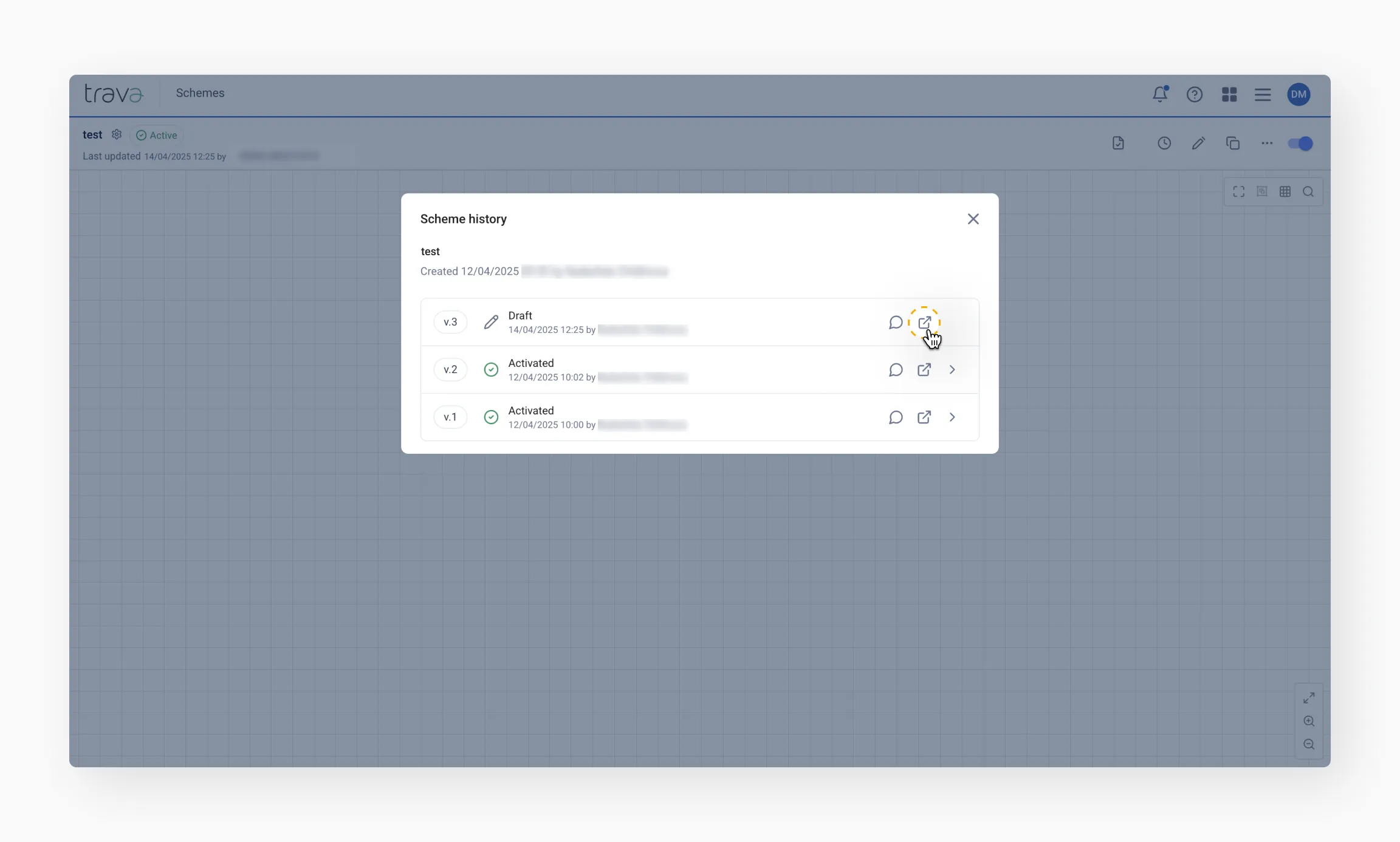
You can also view the entire scheme for a specific version by clicking the Open scheme icon.
Commenting on changes
To make the history easier to understand, add comments when activating a draft.
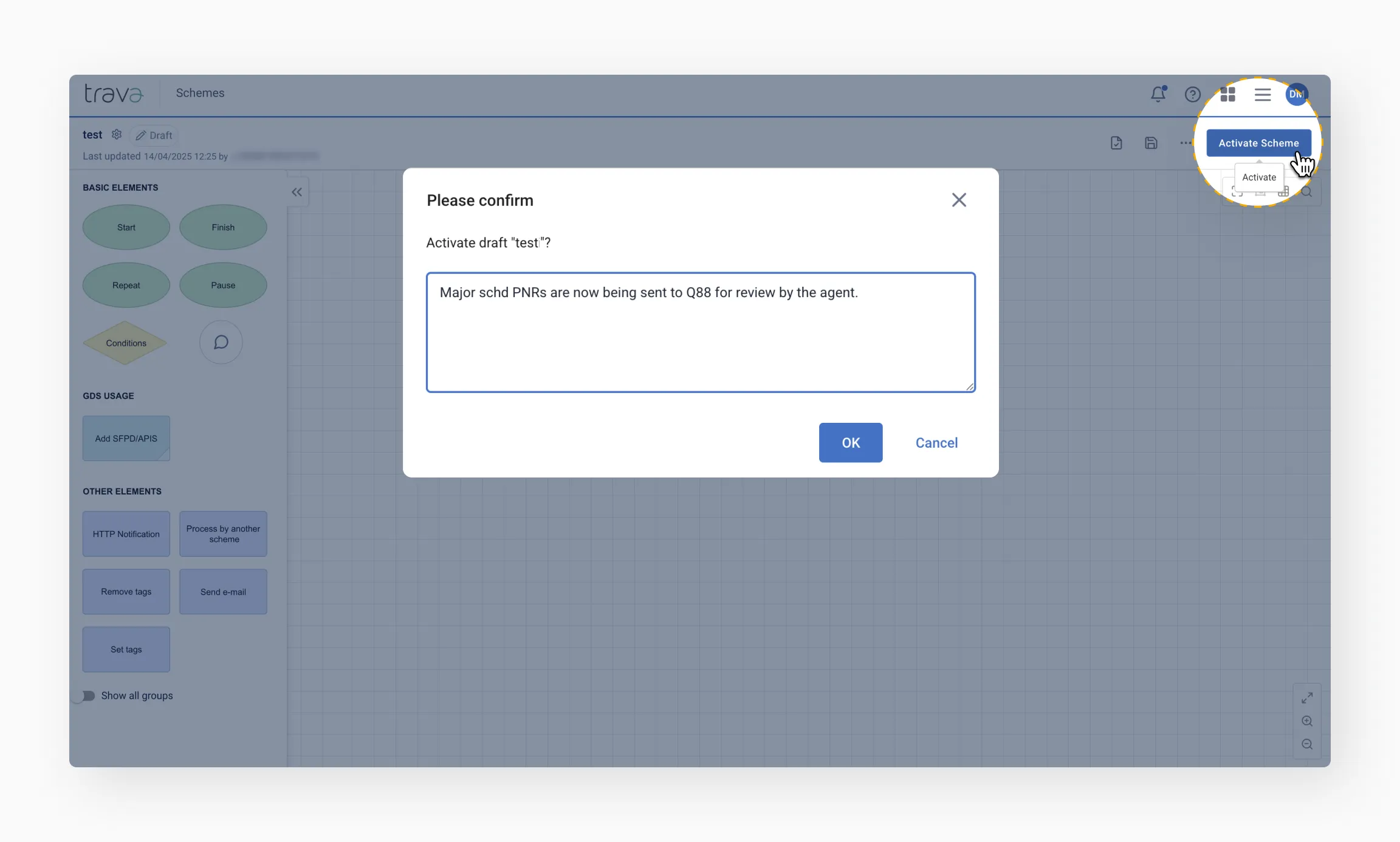
These comments can explain why changes were made and are stored in the version history for future reference.

Final tips
- Use Scheme history to keep track of all changes and ensure accountability across your team.
- Add comments when activating a draft – it helps others understand the context of your edits.
- Remember that the version author is the person who activates the scheme, not necessarily the one who made the edits.
- Take advantage of element-level tracking to quickly review what was modified and why.
- Regularly check the history log to stay informed and maintain full control over scheme development.