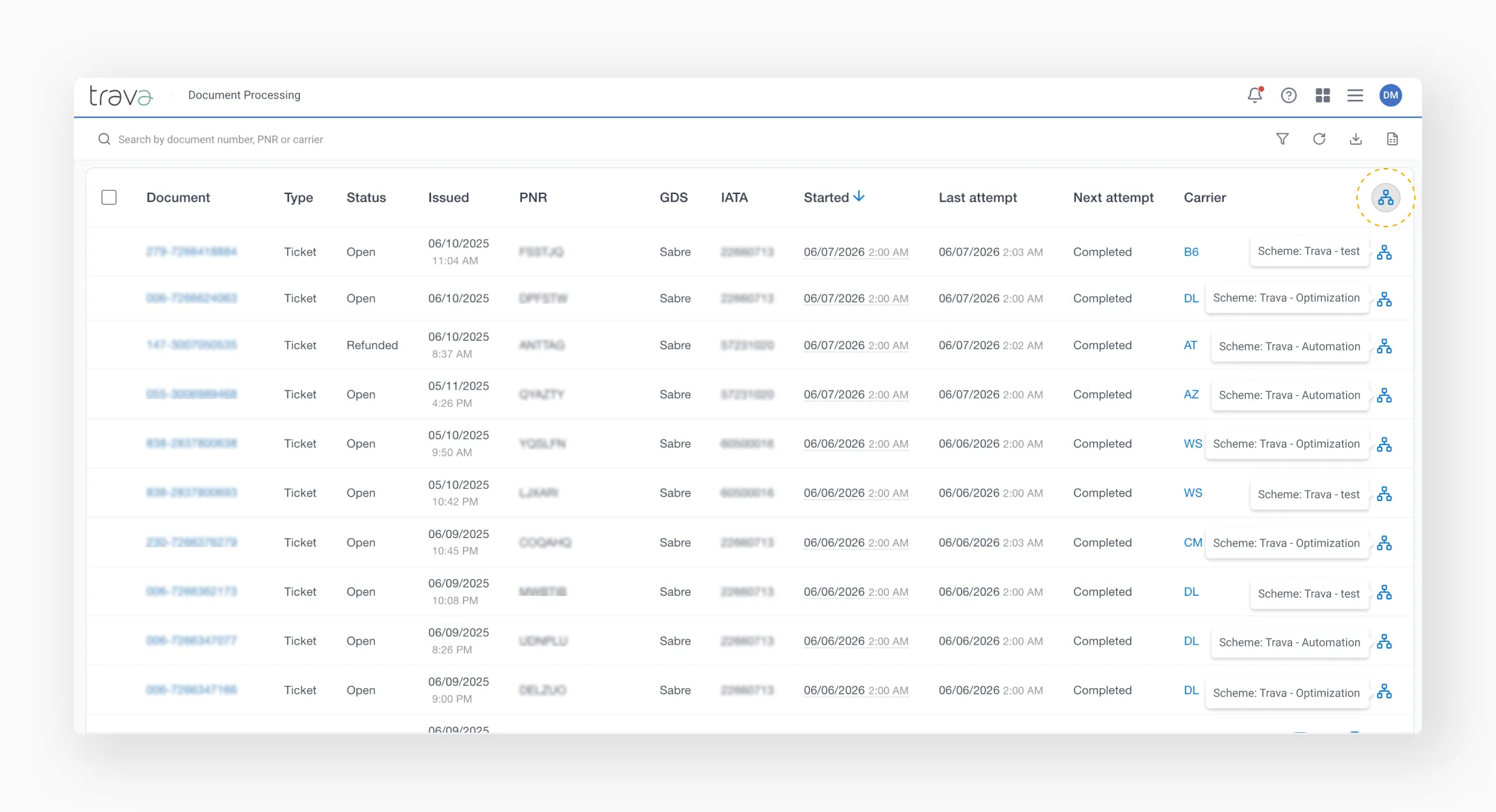
Document table
Learn how to navigate the instance table and use its key features efficiently.
Understanding instances
Tickets and EMDs are processed in Trava as a separate type of object, different from PNRs. They are handled by dedicated processing schemes designed specifically for document operations: Ticket processing and EMD processing.
All document-related processing results are displayed on the Document Processing page.
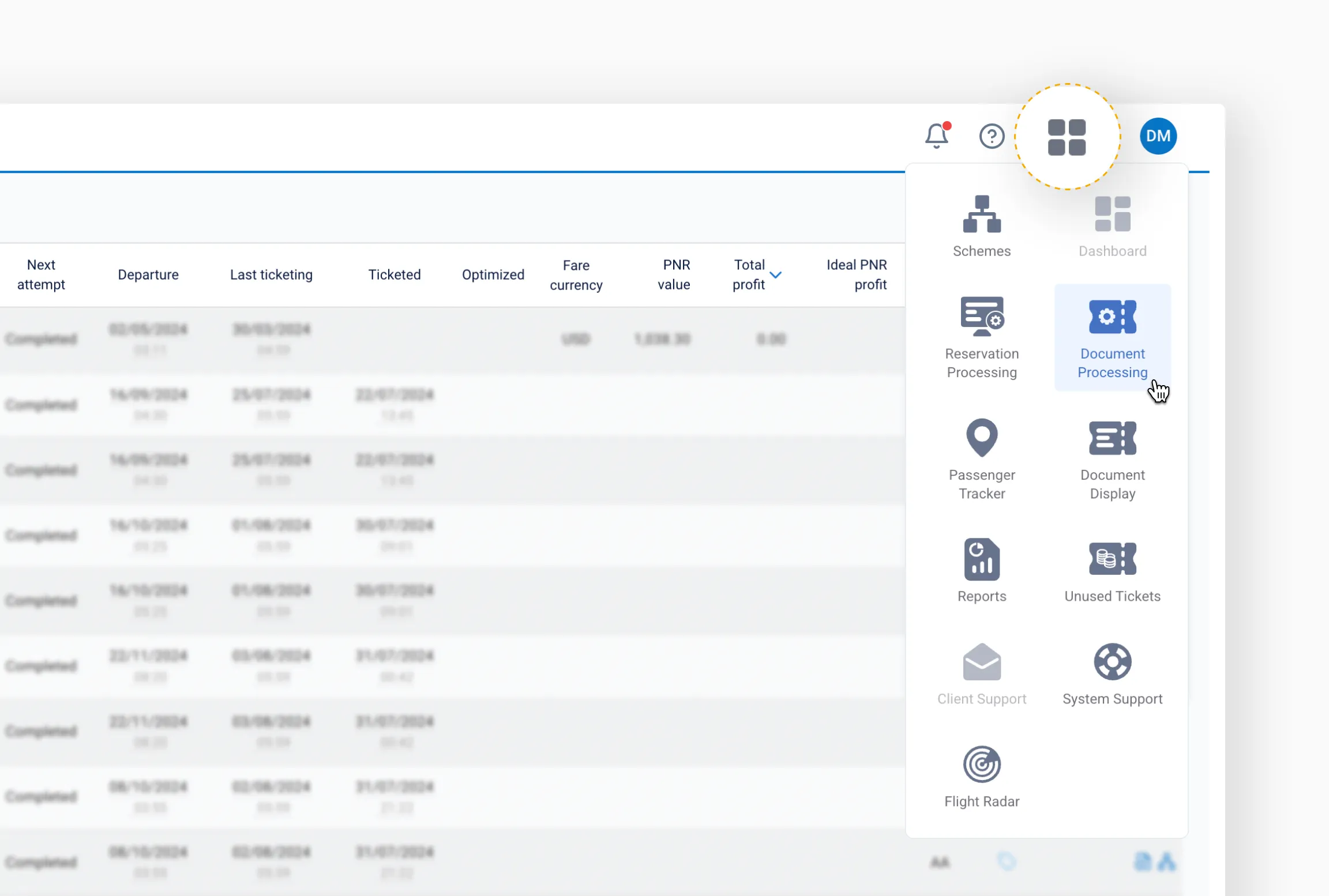
Each time a document is processed by a scheme, the system records it as an instance in the table.
- If the same document is processed again by the same scheme, the system updates the existing instance instead of creating a new one.
- If the document is processed by multiple schemes, it appears as separate instances – one per scheme.
Documents table overview
Instances are displayed in reverse chronological order. By default, the table is sorted by the Started column, so the most recently processed documents appear at the top.

Checkbox
The checkbox at the beginning of each row allows you to select one or multiple instances for additional actions. Once selected, additional operations become available.
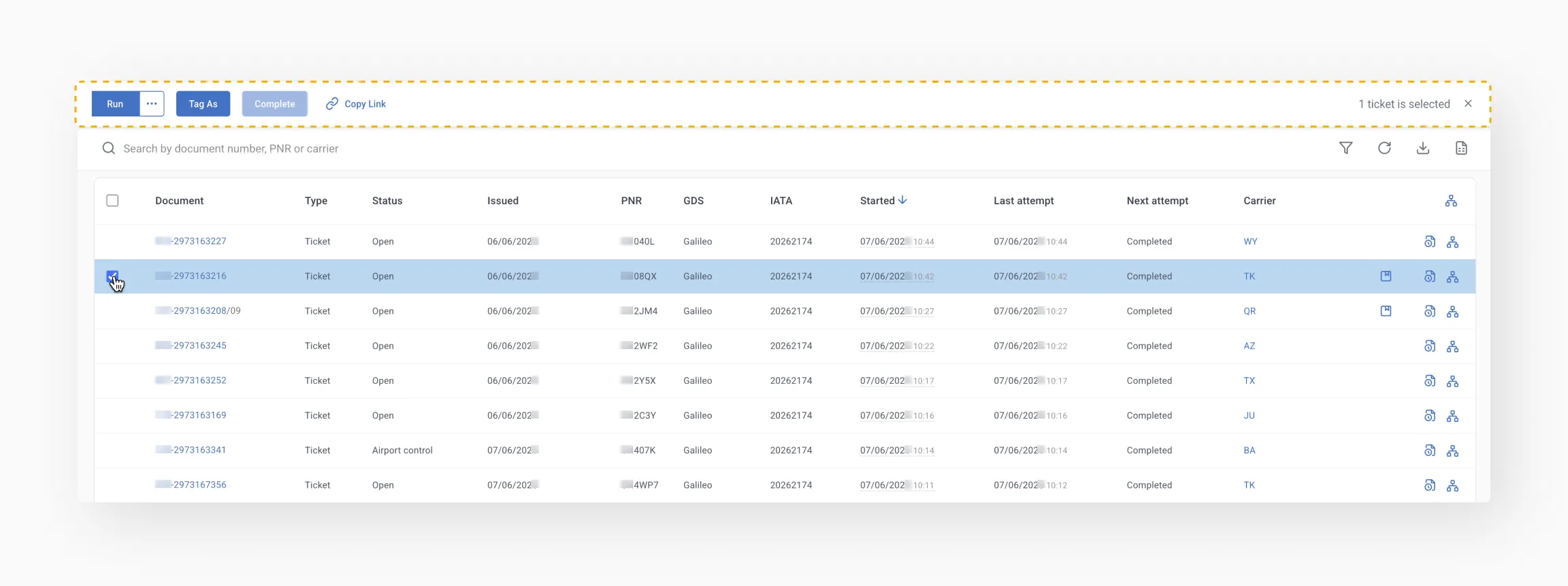
Table columns explained
| Column | Description |
|---|---|
| Document | The document number. Click the number to open a modal window with detailed information about the document. See also: Electronic Ticket Record. |
| Type | Specifies the document type. Possible values: Ticket, EMD. |
| Status | Shows the current status of the document. Possible values: Open, Refunded, Flown, Void, Exchanged.If the status is displayed as ****, the system cannot retrieve the document data from the GDS (e.g., the ticket is too old and no longer available in the airline database). |
| Issued | The date when the ticket or EMD was issued. |
| PNR | The booking reference associated with the document. |
| GDS | The system in which the PNR exists: 1A – Amadeus, 1S – Sabre, 1G – Galileo, 1P – Worldspan, 1V – Apollo, 1C – Accelya. |
| IATA | The IATA number of the agency that issued the document |
| Started | The date and time when the scheme started processing the document. Hover over the value to see how much time passed between ticket issuance and processing start. |
| Last attempt | The date and time of the most recent processing attempt |
| Next attempt | The scheduled time for the next processing attempt. Possible values: Completed – No further processing is scheduled, Paused – Processing will resume at the configured time, Processing – The scheme is currently running, Disabled – Processing stopped because the scheme was deactivated. |
| Carrier | The airline that issued the document.This value is clickable and allows you to open the carrier settings. |
Information icons
Icons displayed at the end of each row provide quick access to additional information about the instance.
Shows the emails sent during processing.
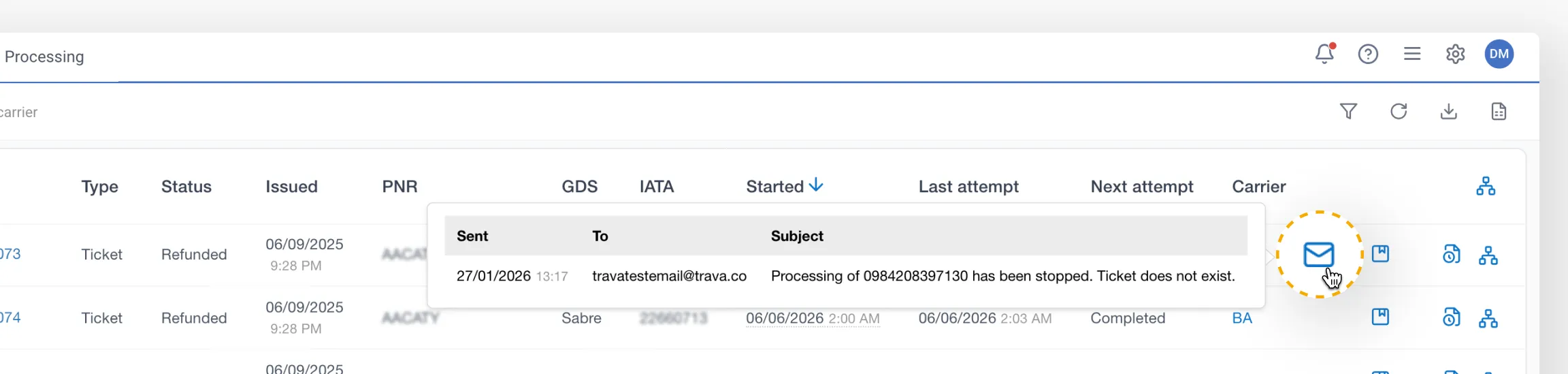
You can view the sending date, recipient, and email subject. Click the subject to open the full email.
Tags
Displays tags assigned to the document or instance.
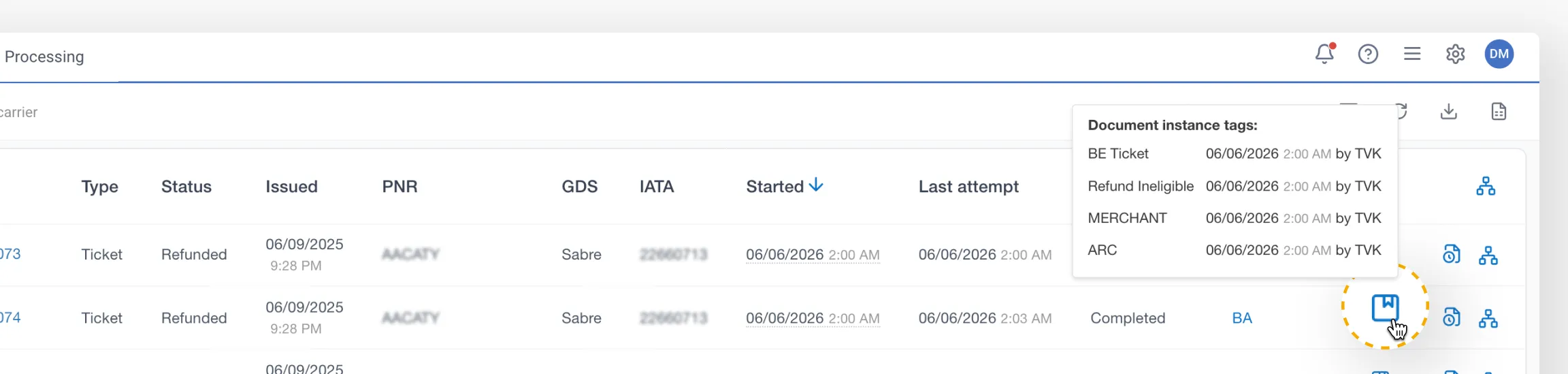
Hover over the icon to see the list of assigned tags. Click the icon to open a modal where you can manually add or remove tags.
Tip
Tags added manually from this modal are not recorded in the processing history but are visible when hovering over the icon. The available tags must be configured in: System Settings → Tags → Document tags.Warning / Error
Hover over the icon to see the reason for the warning or error generated during processing.
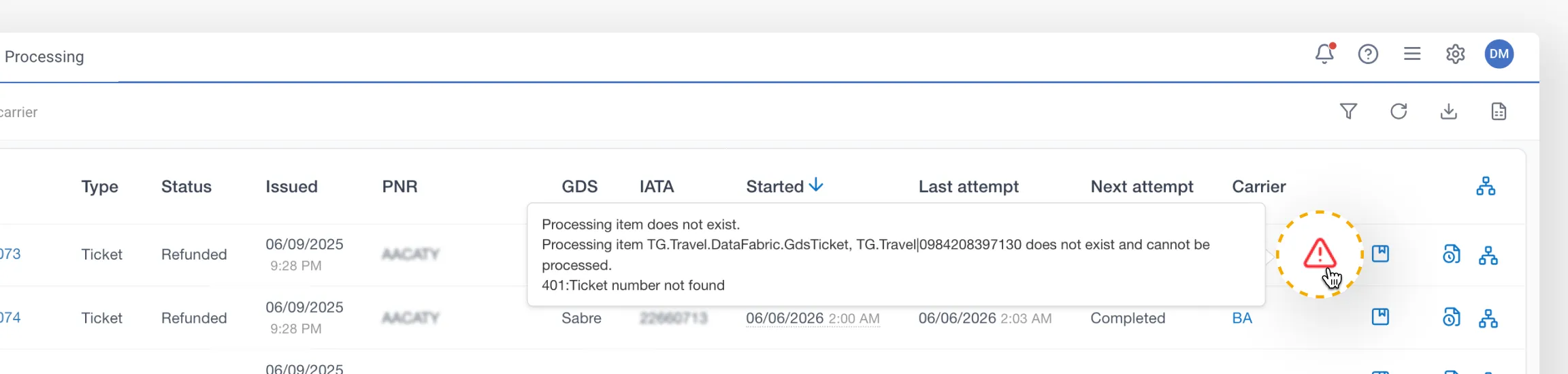
Processing history
Opens the processing history for the selected instance. If the icon is not displayed, the history is unavailable because the system stores it only for a limited period.
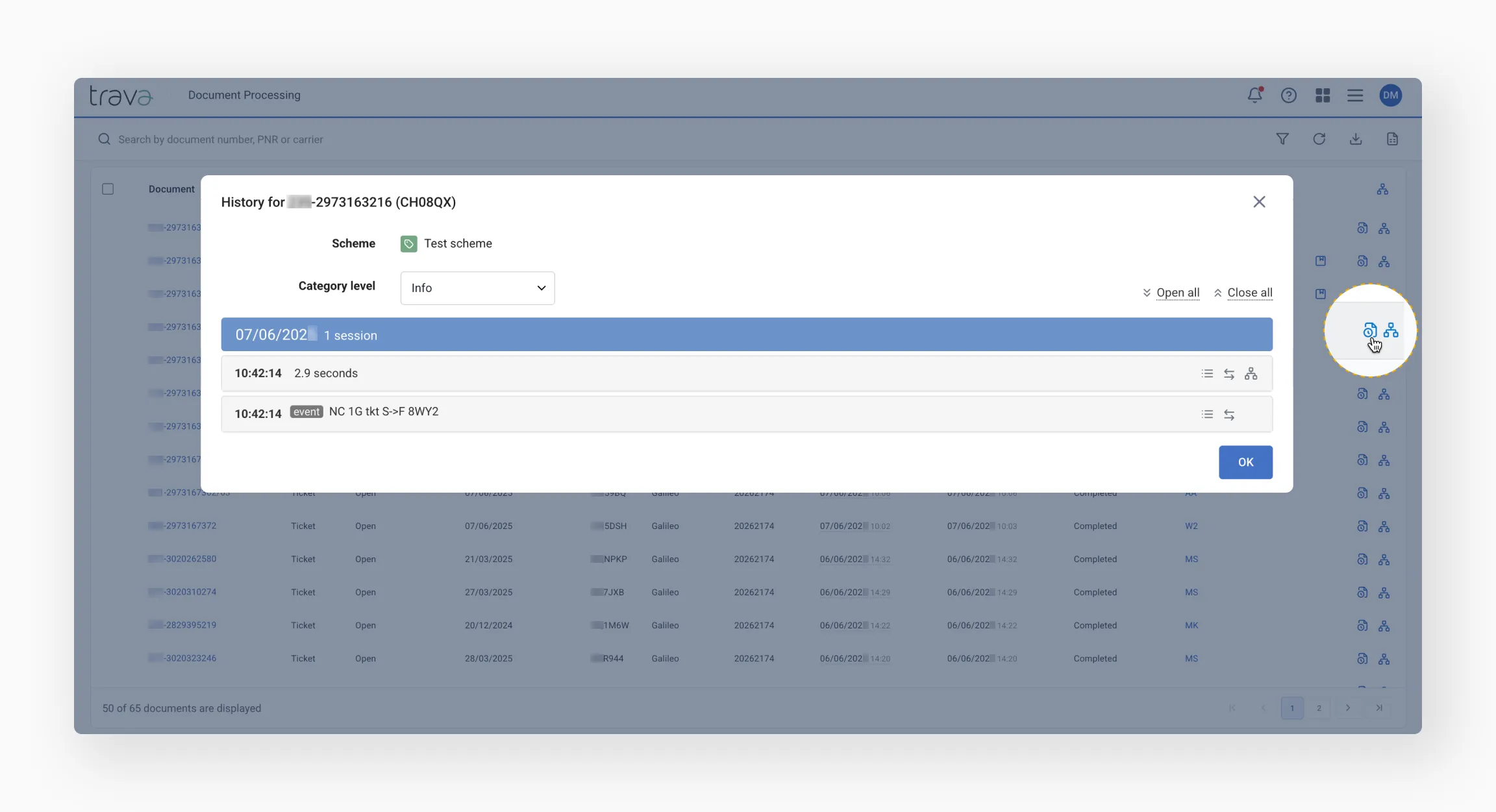
Scheme
Click the Scheme icon in the column header to display the names of all schemes used for the instances currently shown in the table.
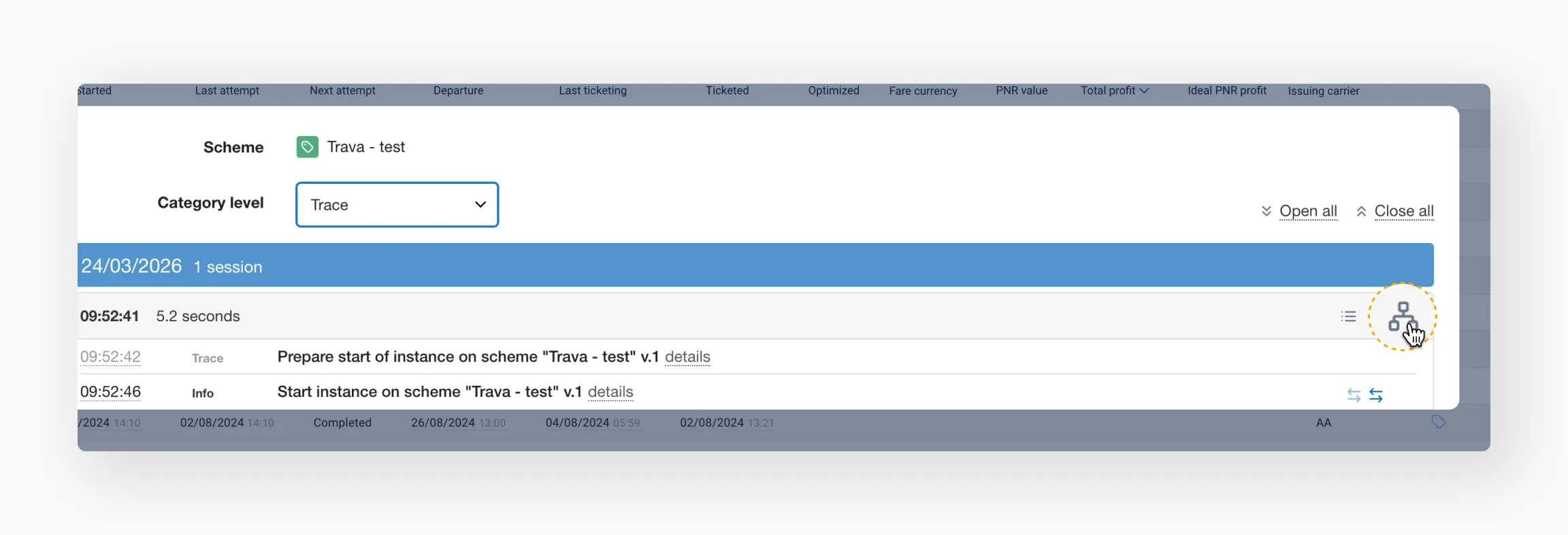
Click the Scheme icon inside a row to open the specific version of the scheme used during the most recent processing run.