
How to set up
How it works
Conditions help control how a scheme behaves based on the data it encounters. By defining specific checks, the system verifies key parameters of a PNR, ticket, or EMD and determines the next step in the workflow.
Each condition has two possible outcomes:
- OK – the condition is met, and the workflow proceeds accordingly
- FAIL – the condition is not met, triggering an alternative path
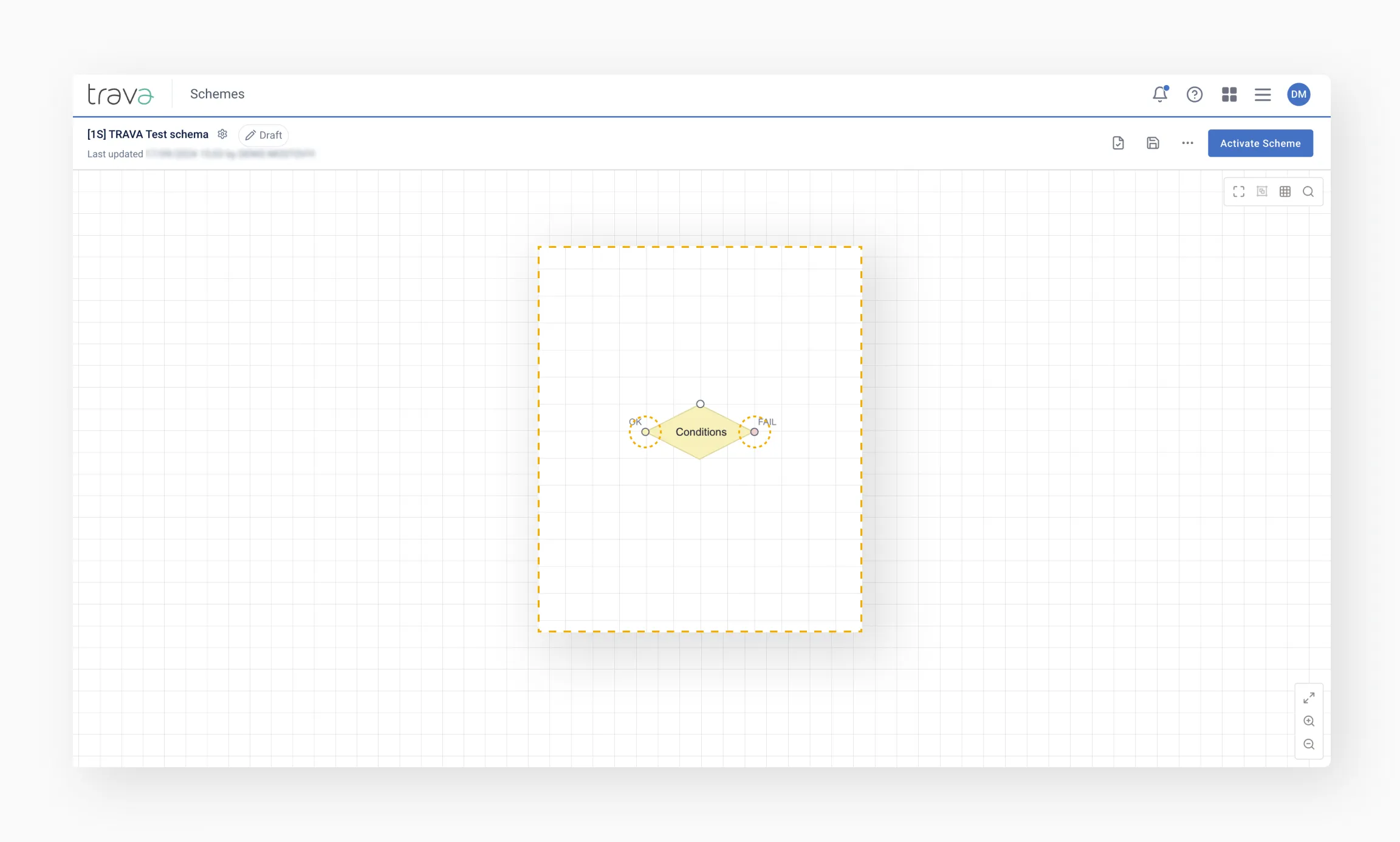
Since the Conditions element varies depending on the scheme type and GDS, its available checks may differ.
Configuring conditions
To set up a condition, double-click the element to open its settings.
Conditions can include multiple checks, which are executed sequentially. They can also be combined or grouped using AND/OR logic:
- AND – the condition is met only if all checks within the group are met.
- OR – the condition is met if at least one of the checks is met.
Example: the system checks two condition groups sequentially, combined with OR.
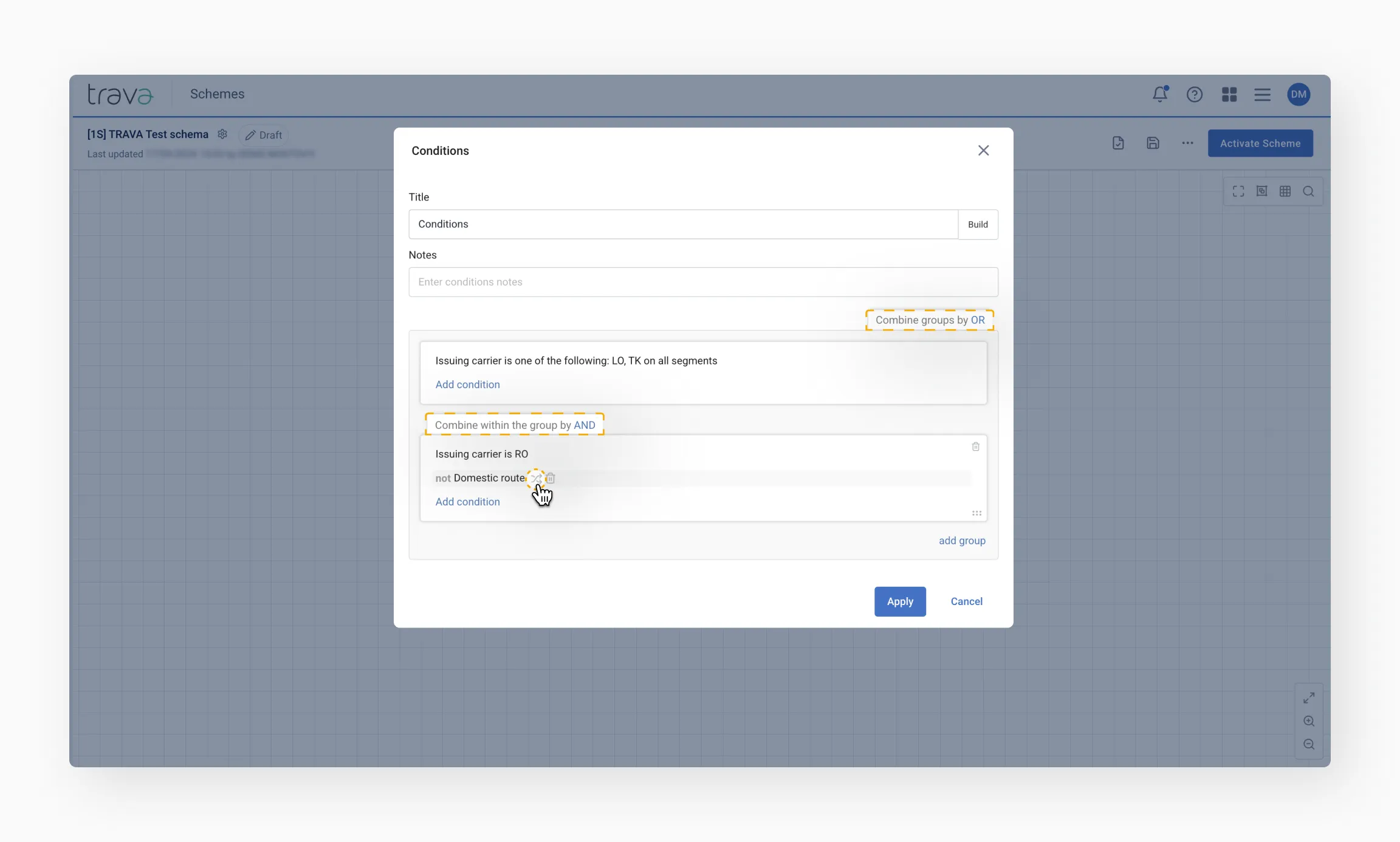
If the issuing airline is LO or TK, the condition exits with OK without evaluating further rules – OR logic between groups means only one group needs to be satisfied.
If neither airline matches, the system moves to the next condition group, where all conditions must be met (AND logic) to proceed via OK.
Tip
Take note of the not Domestic route setting in the example above. This condition is configured using inversion to achieve the opposite of the expected result.Inversion (NOT logic)
Inversion reverses the outcome of a condition, allowing you to check for the opposite result. For complex conditions, inversion follows these logical rules:
Rule 1: Inverted condition: Not (A or B) → Evaluation: Not A and Not B
Rule 2: Inverted condition: Not (A and B) → Evaluation: Not A or Not B
Example: a condition checks whether the schedule has changed by more than 15 minutes OR the date has changed.

- Without inversion: the condition triggers if either event occurs
- With inversion: the condition triggers only if the schedule change is less than 15 minutes AND the date remains the same
Checking multiple documents in a PNR
Some conditions, such as Ticket conditions and EMD conditions, check the data of a specific document. In ticket processing and EMD processing schemes, they check only the document being processed.
In PNR-based schemes, a PNR may contain more than one document. Specify which documents must match the configured parameters:
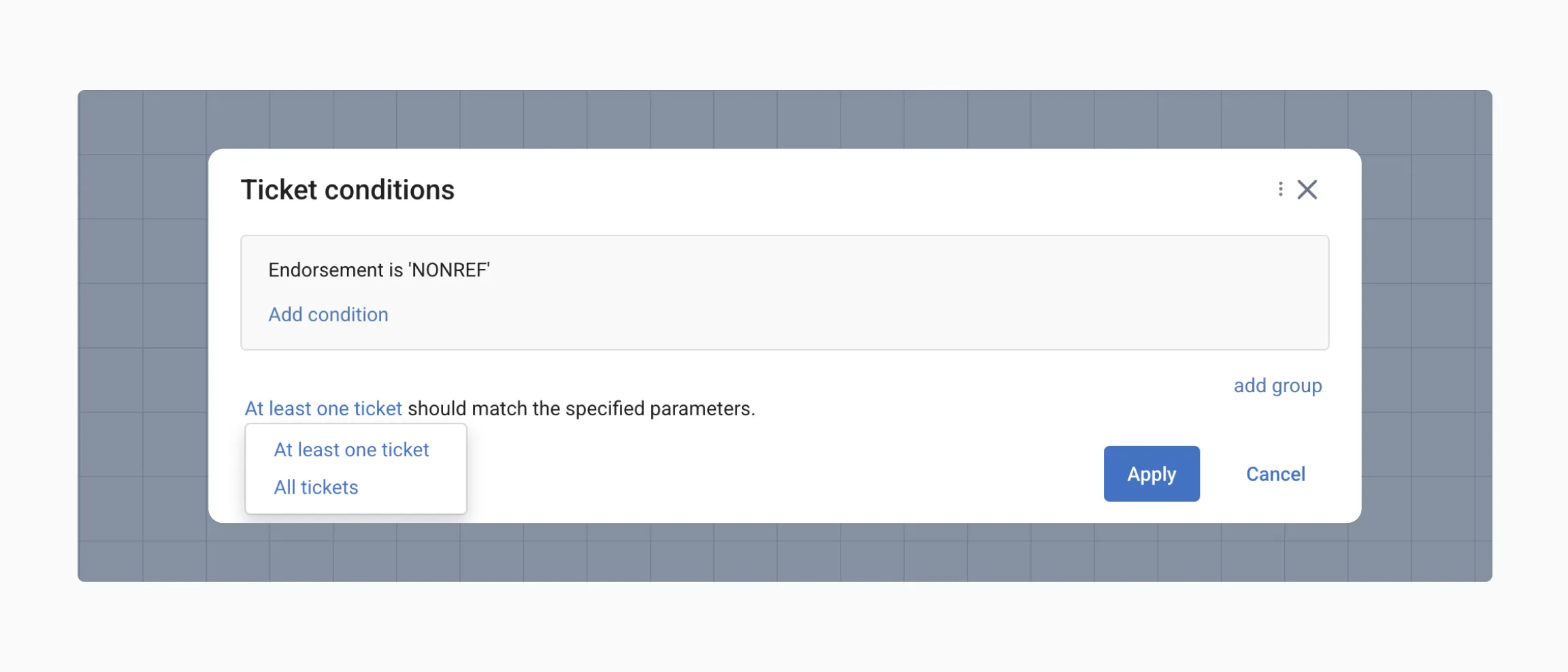
- At least one ticket – The condition is met if at least one document in the PNR matches.
- All tickets – The condition is met only if all documents in the PNR match.
Tip
See Conditions to explore compatible scheme types and detailed descriptions.Temporarily disabling a condition
You can disable a condition without deleting it. Set how the system will interpret the disabled condition: as true or false.

This is useful when you want to keep a condition for future use.
Element title and Build
Each condition includes a Title field and a Build button in its settings panel.

Build generates the element's title automatically, based on the parameters selected in that element's settings. The generated title follows the pattern:
[Element name] by [parameter type]: '[Value 1]', '[Value 2]'…
The generated title shows the element's actual configuration directly on the scheme canvas, without opening its settings — useful when reviewing or analyzing the steps of a scheme.
Title is a standard text field. It updates automatically each time you click Build, and you can edit it manually afterward.
Tip
Clicking Build again overwrites any manual edits made to Title.Final tips
- Use AND/OR logic to build precise checks
- Apply inversion when you need to test the opposite of a condition
- Temporarily disable conditions instead of deleting them for easier future modifications